Give everyone a clear, self-service way to manage their Copilot Cowork plan.
Cowork Plans puts plan visibility, requests, pauses and approvals in one simple app - so business users choose the plan that fits the way they work, managers approve in a click, and administrators keep everything aligned with organisational policy.
🎁 Free to use and share - worldwide
Why it exists
Plan administration shouldn’t be a ticket queue
Without a front door, people don’t know which plan they’re on, requests arrive over email and chat, approvals get lost, and admins reconcile groups and spending policies by hand. Cowork Plans replaces all of that with one transparent, governed experience.
See your plan
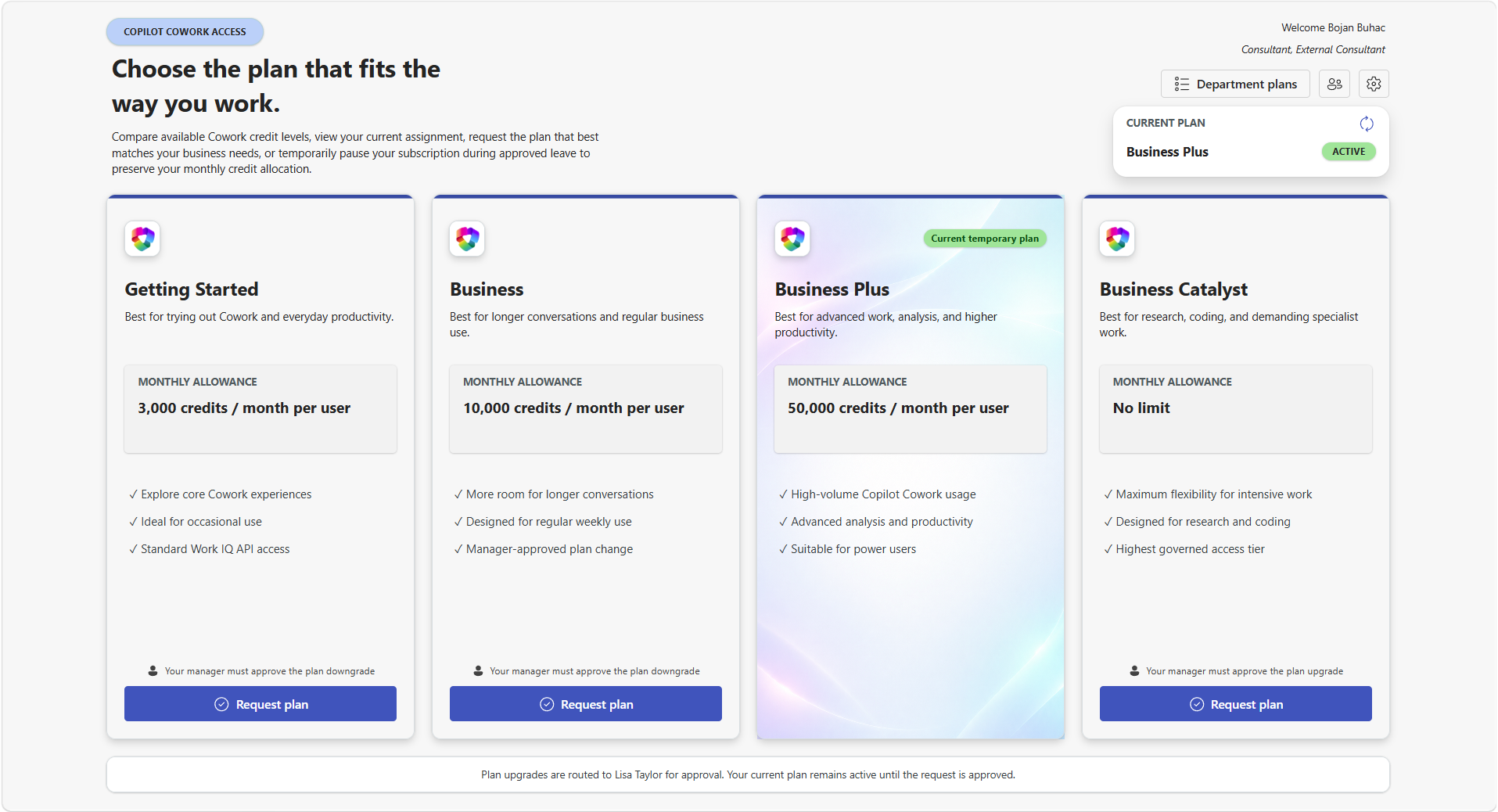
Everyone sees their current assignment, their monthly credit allowance and how the available plans compare - at a glance.
Request an upgrade
Pick the plan that matches the work, add a business justification, choose permanent or temporary, and submit.
Approve in the flow
Requests route to the right manager automatically. The current plan stays active until the request is approved.
Stay in policy
Departments only see the plans they’re entitled to, and every change lands back in the right group and spending policy.
How it works
Four steps, no training required
1
Open the app
The user is recognised automatically - their department, role and current plan are shown on entry.
2
Compare & choose
Plan cards show the monthly allowance and what each tier is best for, so the choice is obvious.
3
Submit for approval
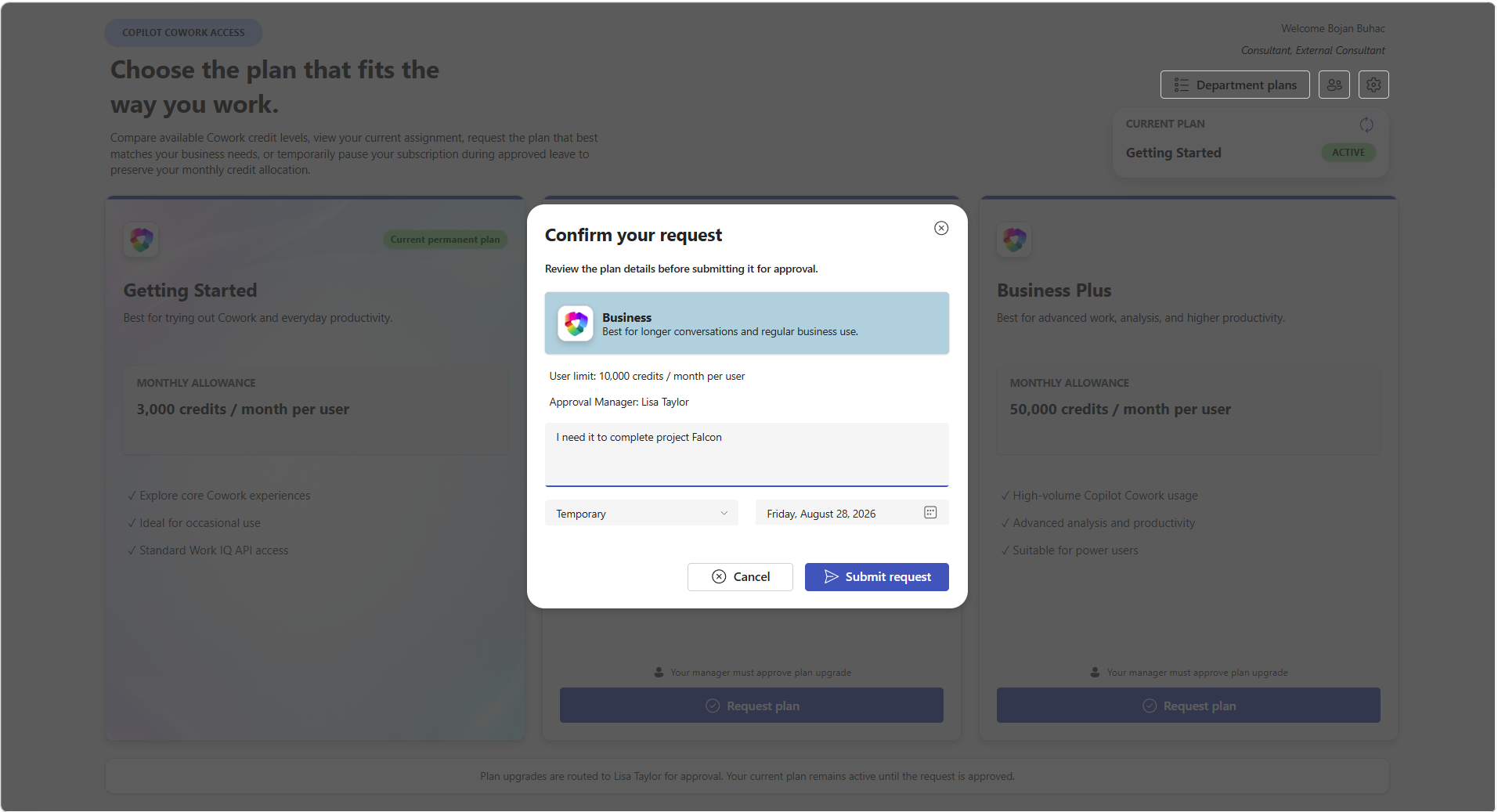
A confirmation dialog captures the justification, duration and end date before anything is sent.
4
Change applied
On approval, group membership and the matching spending policy are updated - no manual admin work.
Product tour
Everything the app does, screen by screen
A dashboard people actually understand
Plans are presented as clear cards - allowance, who each tier suits, and what it unlocks. The current plan is badged, and a status panel confirms it’s active.
Current plan and status always visible
Side-by-side comparison of credit allowances
Approval routing shown up front, so there are no surprises
Requesting a plan takes seconds
A confirmation dialog summarises the plan, its user limit and the approving manager, then captures a business justification and whether the change is permanent or temporary - with an end date.
Business justification captured with every request
Permanent or temporary, with an automatic end date
Approver named before the request is submitted
Pause a plan during leave - and protect the budget
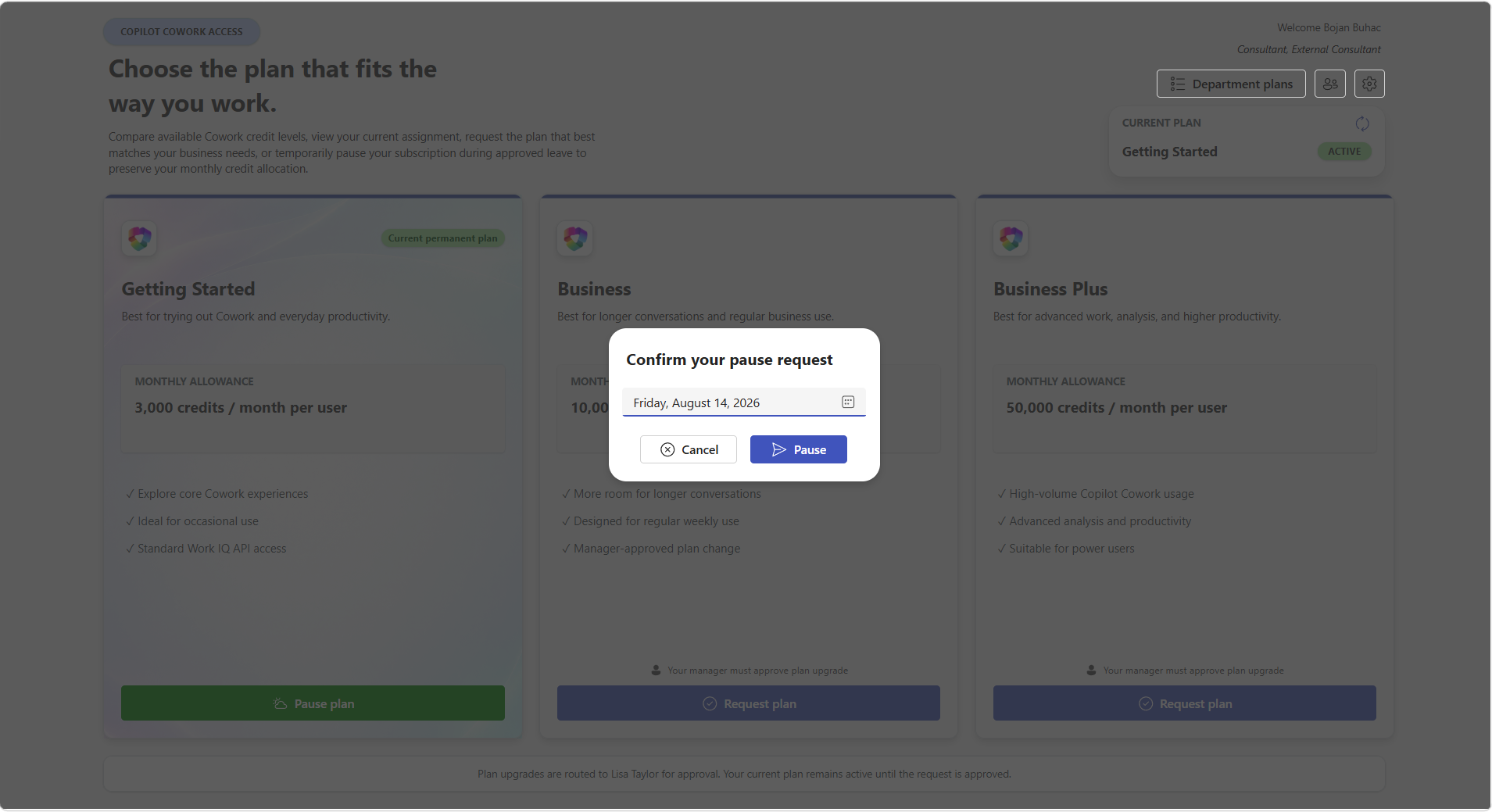
Going on holiday or extended leave? Users can pause their subscription to a chosen date instead of consuming credits they won’t use. Pausing can be enabled or disabled centrally.
Self-service pause with a return date
Avoids spend on unused monthly allowances
Optional - administrators decide whether it’s available
Plans tailored to each department
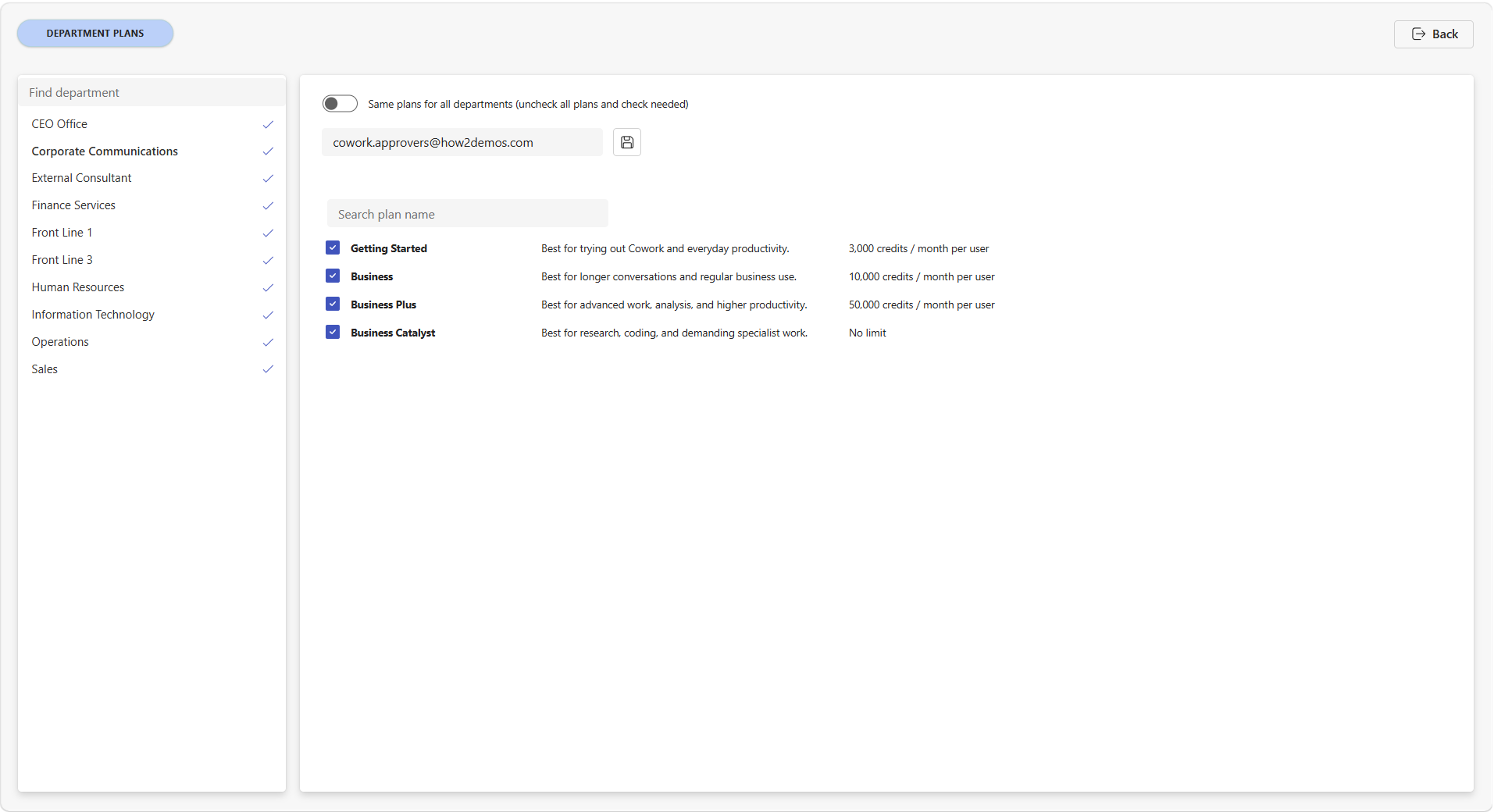
Administrators choose exactly which plans each department can see and request - from the CEO Office to Front Line teams - so entitlements follow organisational policy instead of individual negotiation.
Per-department plan entitlements
Searchable plan catalogue with descriptions and limits
Add new tiers as your programme grows
Configurable in minutes, not sprints
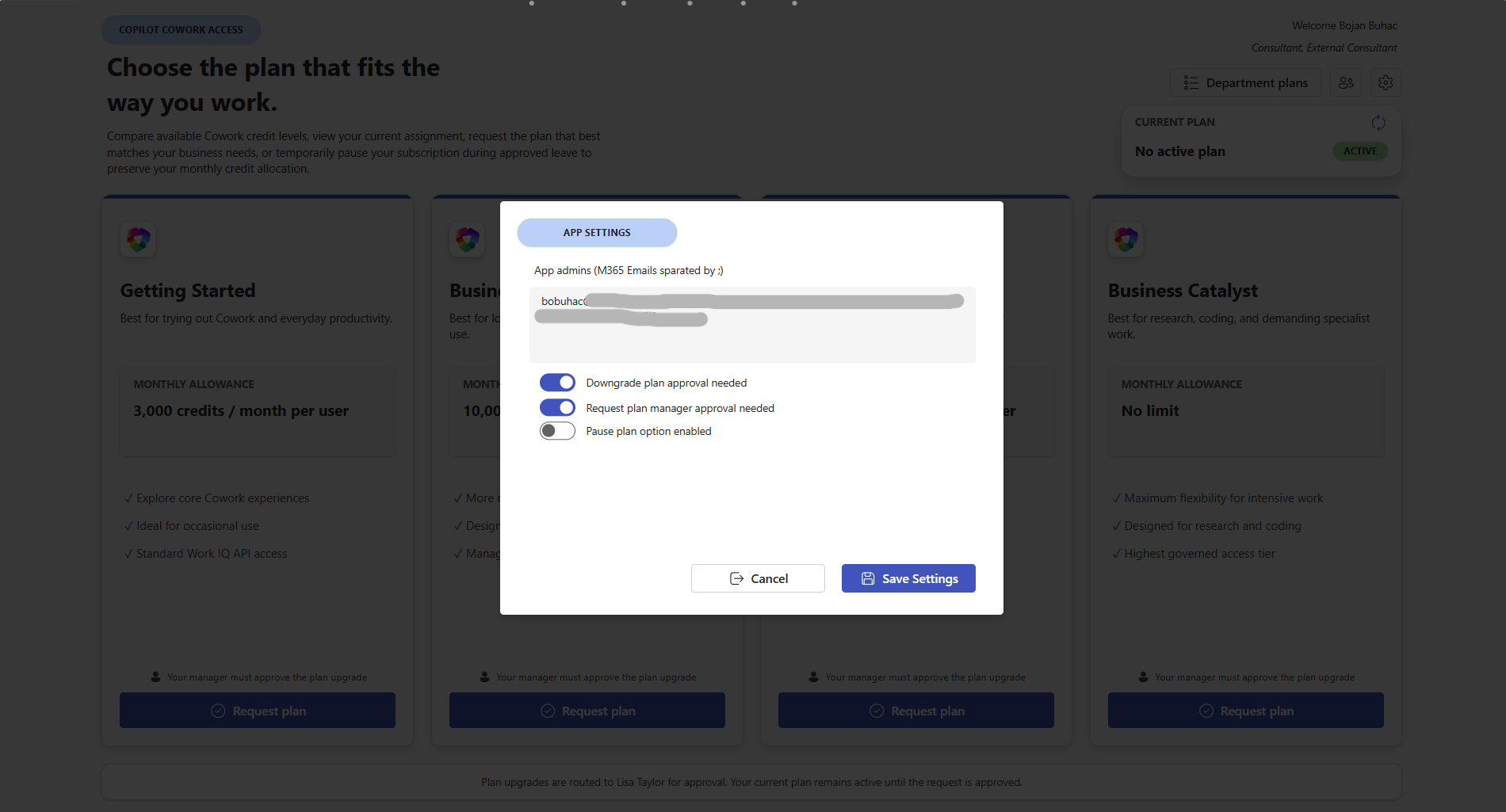
A single settings screen controls the pause group, app administrators, the vacation phrases the app recognises, whether pausing is enabled, and whether manager approval is required.
Named app administrators
Toggle pause and manager approval on or off
Localise the leave keywords the app looks for
Under the hood
Standard Microsoft 365 building blocks
No custom infrastructure to run. The app sits on the platform you already govern - Microsoft Entra groups for membership, SharePoint lists for configuration and request history, and Copilot Cowork spending policies for the limits themselves.
Entra groups - one group per plan tier drives who gets which allowance.Spending policies - each group maps to a policy with its own per-user monthly limit.SharePoint lists - settings, department entitlements and a full request trail.
The payoff
What you get on day one
Transparency
People stop asking “which plan am I on?” - and admins get a written record of every request, justification and approval.
Less admin effort
Group membership and spending policy changes follow the approval instead of a manual checklist.
Cost control
Entitlements per department, manager approval for upgrades, and pausing during leave keep consumption intentional.
Ten steps to stand up the SharePoint data layer, Entra security groups, Cowork spending policies, the Power Platform solution and the site permissions that let everyone submit requests. Allow around 90 minutes end to end.
SharePoint Administrator (or site-creation rights), Site Owner on the new site (to set permissions), Entra ID Groups Administrator (to create security groups), Copilot/Cowork admin rights (to create spending policies), and System Administrator on the target Power Platform environment. Complete the steps in order - later steps depend on IDs produced by earlier ones.
Download first: the solution package (Step 8) and the five CSV files (Step 2). Both are in the same /solution folder of the repository.
SharePoint Administrator or site-creation permission · ~5 minutes
Go to https://<tenant>.sharepoint.com and select Create site.
Choose Communication site. Do not choose Team site - this site must not be connected to a Microsoft 365 group or Teams; it is used purely as a data repository.
Pick the Standard communication site template (blank is fine).
Complete the fields in the table below.
Select Create site and note the final URL - you will need it in Step 8.
Field
Value
Site name
Cowork Plan Management
Site address
/sites/CoworkPlanManagement
Site owner
The account performing this deployment (the “deployment account”)
Language
English
Record this now: Site URL = https://<tenant>.sharepoint.com/sites/CoworkPlanManagement. Every later step and the Power Platform connection reference it.
2 Import the five CSV files as lists
Site Owner · ~15 minutes · repeat five times
2.0 Download the five CSV files
They live in the same solution folder as the package you downloaded. Right-click each link and choose Save link as…, keeping the file name exactly as it is:
Each CSV was exported from SharePoint and carries its own column schema in the first line, so SharePoint recreates the correct column types automatically. Do not open, re-save or edit the CSV files in Excel - that strips the schema line and every column imports as plain text.
2.1 Import procedure (per file)
On the site home page select + New → List.
Select From CSV.
Select Upload file, choose the CSV, and review the detected column types on the preview screen.
Enter the list name exactly as shown below - the flows and app reference these names literally, including spacing and capitalisation.
Clear the Show in site navigation checkbox (optional; keeps the site tidy).
Select Create and wait for the list to finish provisioning before importing the next one.
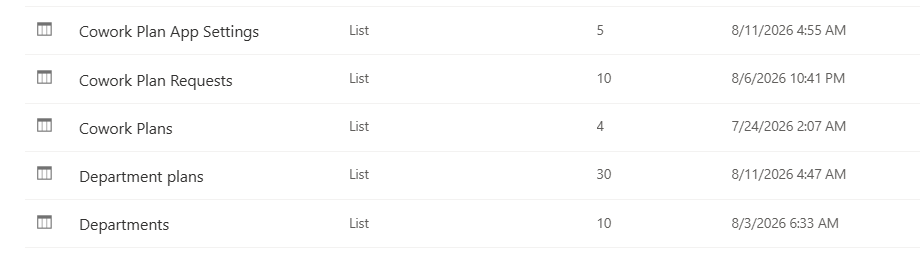
2.2 Import in this order
#
CSV file
List name to use
Rows
Purpose
1
Departments.csv
Departments
0 (structure only)
Department list with an approver per department
2
Cowork Plans.csv
Cowork Plans
4 plans
Plan catalogue: name, description, credit limit, power level, security group ID
3
Department plans.csv
Department plans
0 (structure only)
Mapping table: which plans each department may request
4
Cowork Plan Requests.csv
Cowork Plan Requests
0 (structure only)
Transaction list - every user request, approval and expiry
5
Cowork Plan App Settings.csv
Cowork Plan App Settings
6 settings
Global switches: approvals, pause group, admin e-mails, vacation phrases
2.3 Verify the import
Cowork Plans must contain 4 items: Getting Started, Business, Business Plus, Business Catalyst.
Cowork Plan Requests must show all 20 columns (Title, EntraID, Email, Plan, Agents and services, User limit, SecurityGroupID, PreviousSecurityGroupID, Manager Name, Manager Email, Request Status, DepartmentID, Department, Approval needed, Validity, Until, Business justification, Pause, Pause until, ExpiryProcessed).
If a list imported with the wrong columns, delete it (Settings → List settings → Delete this list), then re-import from the original untouched CSV.
3 Make Title optional on the Department plans and Cowork Plan Requests lists
Site Owner · ~4 minutes · repeat on both lists
Neither list uses the built-in Title column - Department plans only stores the DepartmentID/PlanID pair, and Cowork Plan Requests records the requester in its own columns. Title is mandatory by default, which makes the Power Automate “create item” action fail. Turn the requirement off on both lists:
Open the Department plans list.
Select the gear icon → List settings. (If you only see the modern pane, choose List settings → More library settings.)
Under Columns, select Title.
Under Require that this column contains information, select No.
Select OK.
Repeat steps 1–5 on the Cowork Plan Requests list.
Both lists must be changed. If Title is left mandatory on Cowork Plan Requests, every plan request fails at the point the flow writes the row - and the failure surfaces only when a user submits a request, not during deployment.
4 Create the five security groups in Microsoft Entra ID
Groups Administrator or User Administrator · ~10 minutes
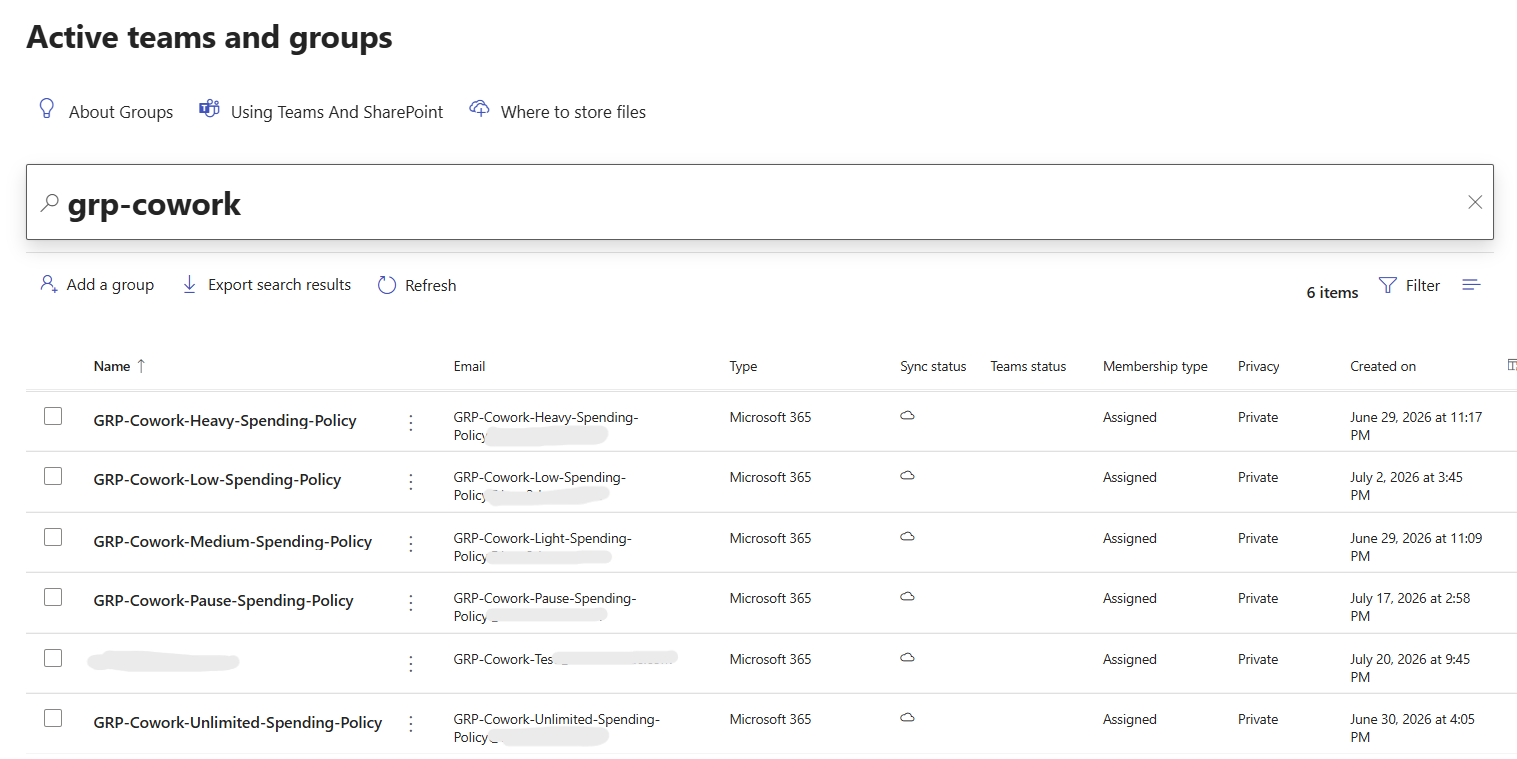
One security group is required per plan, plus a fifth group for the pause capability - five groups in total, all of them required. The Power Automate flows add and remove users from these groups, and every Cowork spending policy is targeted at one of them.
The pause group is where users are moved when their consumption is temporarily suspended (for example while they are on vacation or leave). It carries its own spending policy with the minimum credit allowance, so a paused user keeps access but consumes almost nothing until the flow moves them back to their normal plan group.
4.1 Create each group
Go to https://entra.microsoft.com → Groups → All groups → New group.
Complete the form using the values below.
Select Create and repeat for every group in table 4.2.
Field
Value
Group type
Security
Group name
See table 4.2
Membership type
Assigned (must not be dynamic - the flow manages membership)
Entra roles can be assigned
No
Owners
The account performing this deployment
Members
Leave empty
Why the owner matters: add the deploying account as group Owner on all five groups. A group owner can add and remove members through the Office 365 Groups / Entra connector without any tenant-level admin consent, so the Power Automate flows run under that identity with no extra permissions or application registration.
4.2 Groups to create
Group name
Used for
Cowork - Getting Started
Plan 1 - 3,000 credits / month per user
Cowork - Business
Plan 2 - 10,000 credits / month per user
Cowork - Business Plus
Plan 3 - 50,000 credits / month per user
Cowork - Business Catalyst
Plan 4 - no credit limit
Cowork - Paused
Required. Group 5 - users temporarily paused (vacation/leave). Gets the pause spending policy with the minimum credit allowance. Its object ID must be entered as the Value of the Pause Group item in Cowork Plan App Settings (Step 6.1).
5 Copy each security group ID from the URL
Groups reader · ~3 minutes
In the Entra admin centre, open Groups → All groups and select a group.
Look at the browser address bar. The URL ends with the group’s object ID (a GUID), for example …/GroupDetailsMenuBlade/~/Overview/groupId/ab36b72a-3f84-4eb4-a217-542b04d0ce63.
Copy everything after /groupId/ - that 36-character GUID is the Security Group ID. (The same value appears on the group’s Overview page as Object Id; either source is fine.)
Record each GUID against its plan - you will paste them in Steps 6 and 7.
Plan
Group name
Security Group ID (paste yours here)
Getting Started
Cowork - Getting Started
Business
Cowork - Business
Business Plus
Cowork - Business Plus
Business Catalyst
Cowork - Business Catalyst
Pause (no plan)
Cowork - Paused
6 Populate Security Group ID on the Cowork Plans list
Site Owner · ~5 minutes
The imported Cowork Plans list already carries the GUIDs from the source tenant. They are not valid in your tenant and must be replaced with the IDs you collected in Step 5.
Open the Cowork Plans list.
Switch to Edit in grid view so you can paste directly into cells.
For each of the four rows, replace the value in the Security Group ID column with the GUID of the matching group.
Select Exit grid view to save.
ID
Title
Power level
Replace Security Group ID with
1
Getting Started
1
ID of Cowork - Getting Started
2
Business
2
ID of Cowork - Business
3
Business Plus
3
ID of Cowork - Business Plus
4
Business Catalyst
4
ID of Cowork - Business Catalyst
6.1 Update the App Settings list at the same time
Open Cowork Plan App Settings and set the tenant-specific values. Every item is edited the same way: select the row, choose Edit, and replace the text in the Value column. The two mandatory tenant-specific entries are Pause Group and Admins M365 Email - the application will not work correctly until both are set.
Title
Set Value to
Pause Group (required)
The object ID of your Cowork - Paused security group, copied from the URL in Step 5. Paste the GUID only, with no spaces, quotation marks or the group name.
Admins M365 Email (required)
The e-mail addresses of the primary application administrators - the people who own the app after deployment and receive its administrative notifications. Separate multiple addresses with a semicolon and no spaces, e.g. first.admin@contoso.com;second.admin@contoso.com. Replace the sample addresses that arrived with the import; do not leave them in place.
Manager approval
true to require manager approval for upgrades, otherwise false
Downgrade approval
true to require approval for downgrades, otherwise false
Pause Enabled
true to enable automatic pausing on vacation, otherwise false
Vacation phrases
Comma-separated keywords detected in out-of-office messages (adjust for your region/languages)
Enter true/false in lower case exactly as shown - the flows compare the text literally.
6.2 Fill in Departments and Department plans
In Departments, add one item per department: Title = department name exactly as it appears in the users’ Entra Department attribute; Approver = the person who approves requests for that department.
In Department plans, add one item per allowed combination: DepartmentID = the ID of the department row, PlanID = the ID of the plan row (1–4). A department only sees the plans listed here.
The result in the app: each department sees only the plans mapped to it.
7 Create the Cowork spending policies
Copilot / Cowork administrator · ~10 minutes
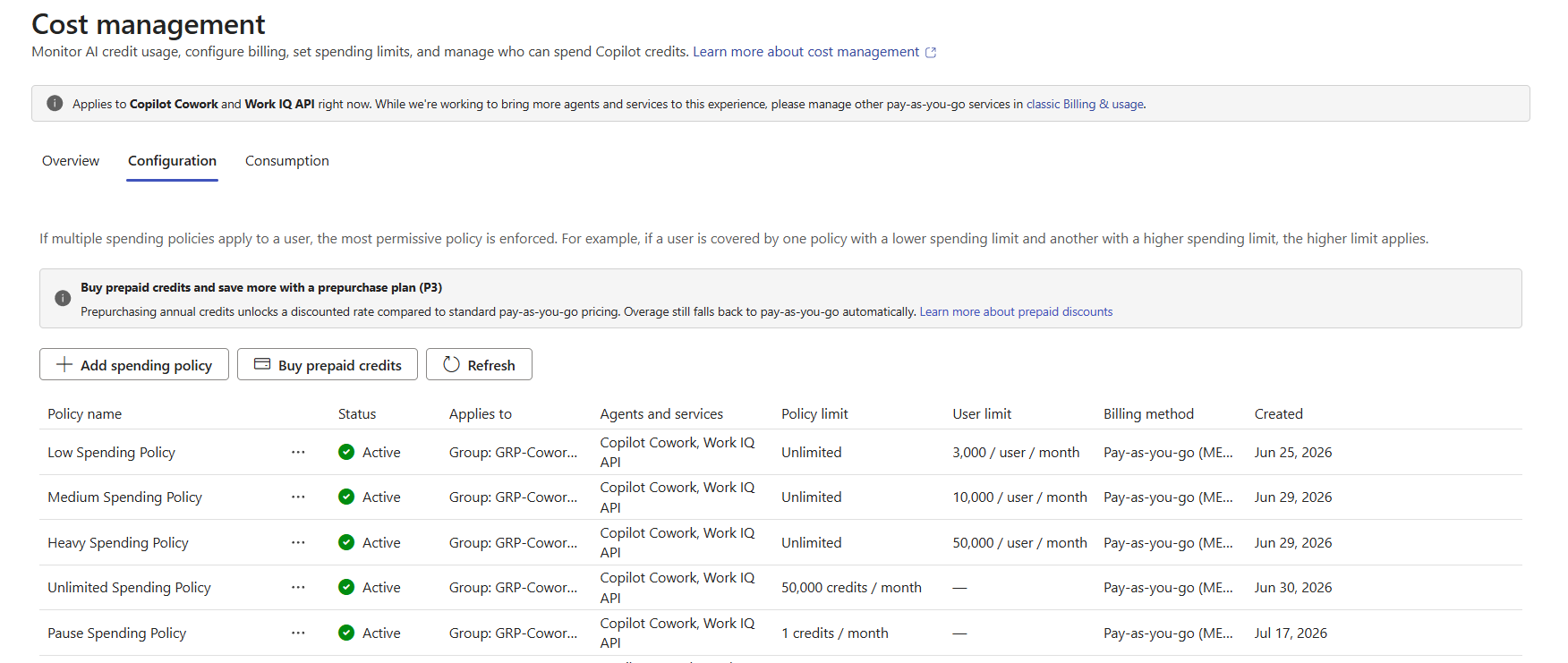
Each plan’s credit allowance is enforced by a spending policy scoped to that plan’s security group. Create one policy per plan, in ascending order of generosity, plus a fifth pause policy for the pause group - five policies in total.
Open the Cowork admin experience and go to Spending policies (or Billing → Spending policies, depending on your admin portal version).
Select New policy (or Create policy).
Policy name - match the plan name so that reporting is readable.
Assigned to - select the security group for that plan (search it by name; confirm the object ID matches the GUID recorded in Step 5).
Limit - the monthly credit cap per user.
Save the policy and repeat for the remaining plans.
Policy name
Assign to security group
Monthly limit per user
Services in scope
Cowork – Getting Started
Cowork - Getting Started
3,000 credits
Copilot Cowork, Work IQ API
Cowork – Business
Cowork - Business
10,000 credits
Copilot Cowork, Work IQ API
Cowork – Business Plus
Cowork - Business Plus
50,000 credits
Copilot Cowork, Work IQ API
Cowork – Business Catalyst
Cowork - Business Catalyst
No limit
Copilot Cowork, Work IQ API
Cowork – Paused
Cowork - Paused
The lowest allowance your portal permits - set the smallest selectable credit amount so paused users consume next to nothing
Copilot Cowork, Work IQ API
How pausing works: when a user is paused, the flow removes them from their plan group (retaining it in PreviousSecurityGroupID) and adds them to Cowork - Paused, so the minimum-credit pause policy applies. When the pause ends, the flow reverses the move and the original plan policy takes effect again. Pausing is only active when Pause Enabled is true and Pause Group holds a valid group ID.
A user must belong to exactly one plan group at a time. The flow removes the previous group (kept in PreviousSecurityGroupID) before adding the new one - do not add users to these groups manually.
8 Import the solution into the Power Platform environment
System Administrator on the target environment · ~20 minutes
8.1 Prepare the environment
Go to the Power Platform admin centre (https://admin.powerplatform.microsoft.com) → Environments.
Use the dedicated environment for this application (create one with + New if it does not exist: type Production, region matching your tenant, Dataverse enabled).
Confirm the deployment account has the System Administrator security role in that environment.
8.2 Get the solution package
Download the ready-made package - no source environment needed:
Current version: CoworkPlan_1_0_0_9.zip · view on GitHub
Some browsers flag .zip downloads - choose Keep. Do not unzip the file; Power Platform imports the .zip as-is.
Exporting from your own environment instead? Open make.powerapps.com → Solutions → select the solution → Export solution → Publish all customisations → Next → choose Managed for production (Unmanaged only if you intend to keep customising) → Export.
8.3 Import into the target environment
In make.powerapps.com, switch to the target environment (top-right environment picker).
Go to Solutions → Import solution → Browse, select CoworkPlan_1_0_0_9.zip, then Next.
On the connections page, create or select a connection for each connector used by the solution, signed in as the deployment account:
SharePoint - access to the site from Step 1
Office 365 Users - reads manager and department attributes
Office 365 Outlook - sends approval and notification e-mail
Microsoft Entra ID / Office 365 Groups - adds and removes group members (works without extra permissions because the account is a group owner, Step 4)
Approvals - manager approval requests
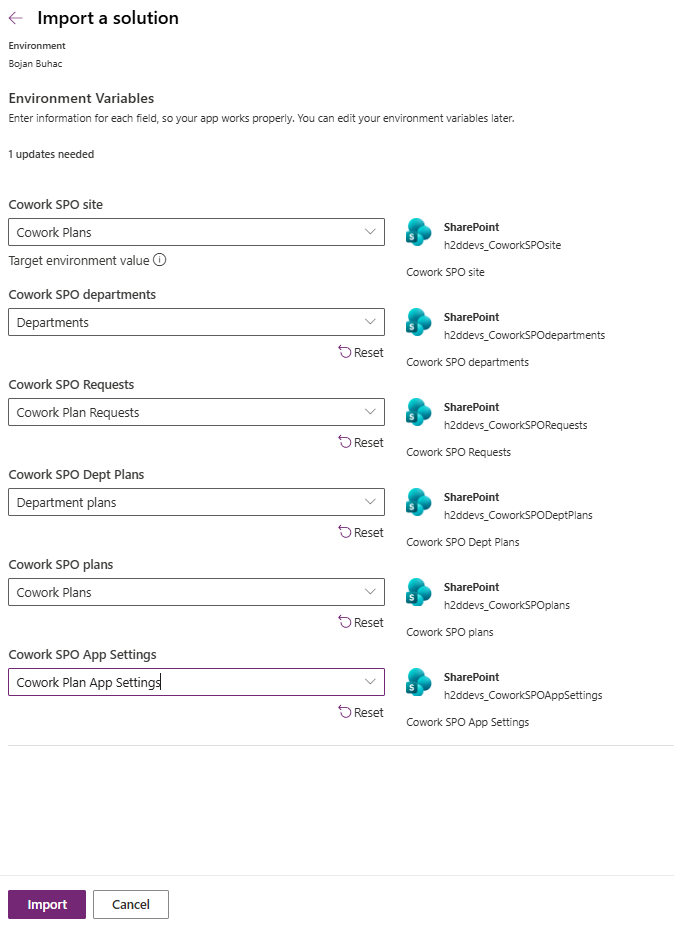
On the environment variables page, enter the tenant-specific values shown below.
Select Import and wait for completion (typically 5–15 minutes).
The environment variables page during solution import - point each variable at your own site and lists.
8.4 Turn on the flows and share the app
Open the imported solution → Cloud flows. Any flow shown as Off must be turned On (open the flow → Turn on).
Open the app → Share → add the user population (for example a broad “All employees” group) with User permission.
Confirm the app’s SharePoint data sources resolve without errors, then Publish the app.
9 Give everyone permission to submit requests
Site Owner · ~15 minutes
Users write directly to the Cowork Plan Requests list when they submit a plan request, so they need more than read access on that one list - but nothing more anywhere else on the site. The pattern below grants exactly that: Visitor (read-only) across the site, plus a purpose-built permission level on the requests list alone.
Who
Site-level access
On the Cowork Plan Requests list
Everyone except external users
Visitors (read)
The custom Submit request level from 9.2
App administrators
Members (edit) at minimum
Inherited from their site membership
External users
No access
No access
9.1 Add everyone as Visitors
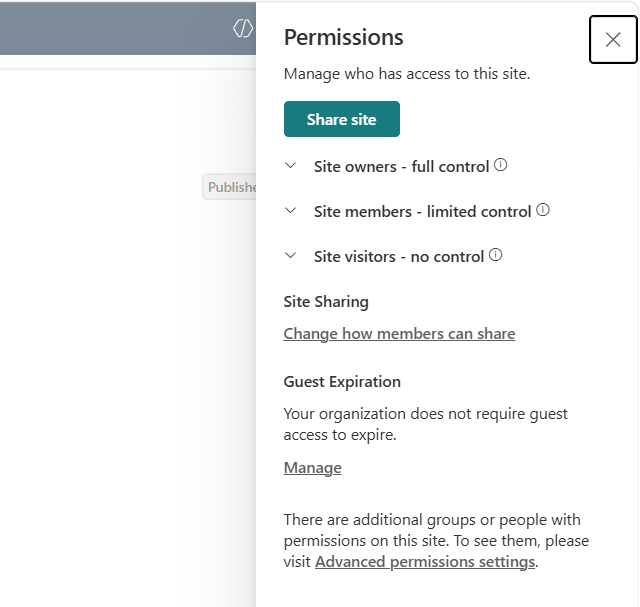
On the site, select the gear icon → Site permissions → Advanced permissions settings.
Open the Cowork Plan Management Visitors group → New → Add users to this group.
Add the Everyone except external users claim and select Share.
Add your app administrators to the Members group (Edit) or the Owners group - they maintain the plan catalogue, departments and app settings, which Visitors cannot change.
Do not grant Edit to everyone as a shortcut. Site-wide Edit would let any user rewrite the plan catalogue, department entitlements and app settings, and delete other people's requests.
Site permissions - open Advanced permissions settings to reach the classic page used throughout this step.
9.2 Create the “Submit request” permission level
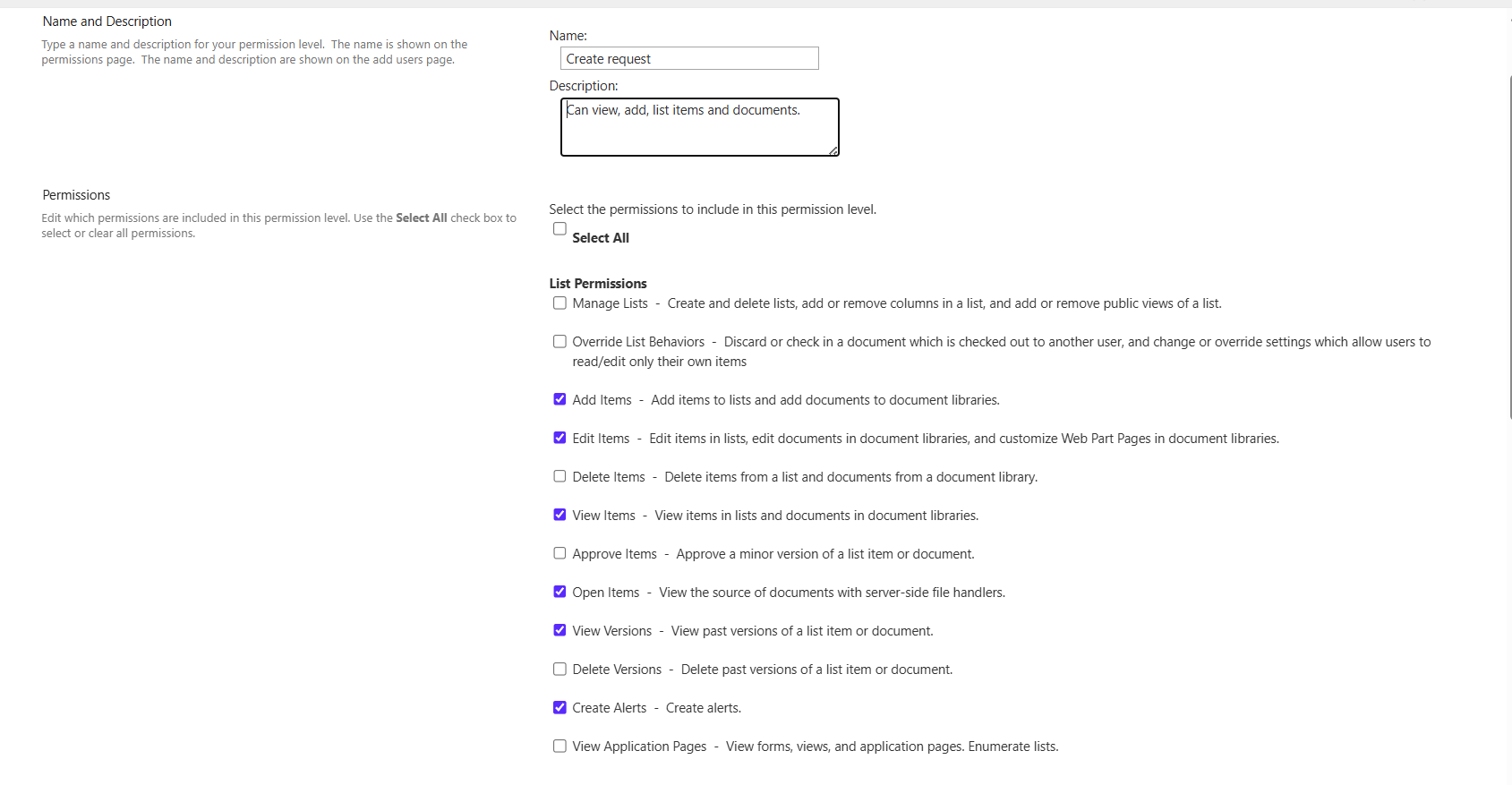
Visitors cannot create list items, and Contribute would let users delete their own rows - which would break the request history the flows rely on. Copy Edit and remove the two capabilities you do not want:
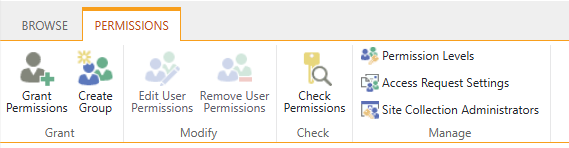
On the advanced permissions page, select Permission Levels in the ribbon.
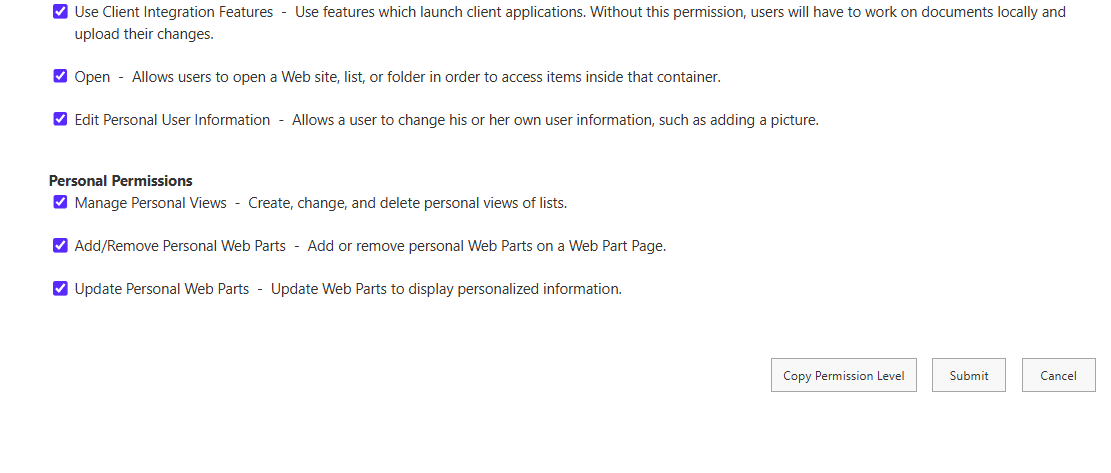
Select the Edit permission level, scroll to the bottom and select Copy Permission Level.
Name it Submit request (add a short description, e.g. “Add and edit own requests; cannot delete”).
Clear Delete Items and Delete Versions.
Clear View Application Pages.
Select Create.
The Permission Levels page - this is where the new level is created.Copy the built-in Edit level rather than building one from scratch.Clear the delete permissions - and View Application Pages further down the form.
9.3 Apply it to the Cowork Plan Requests list
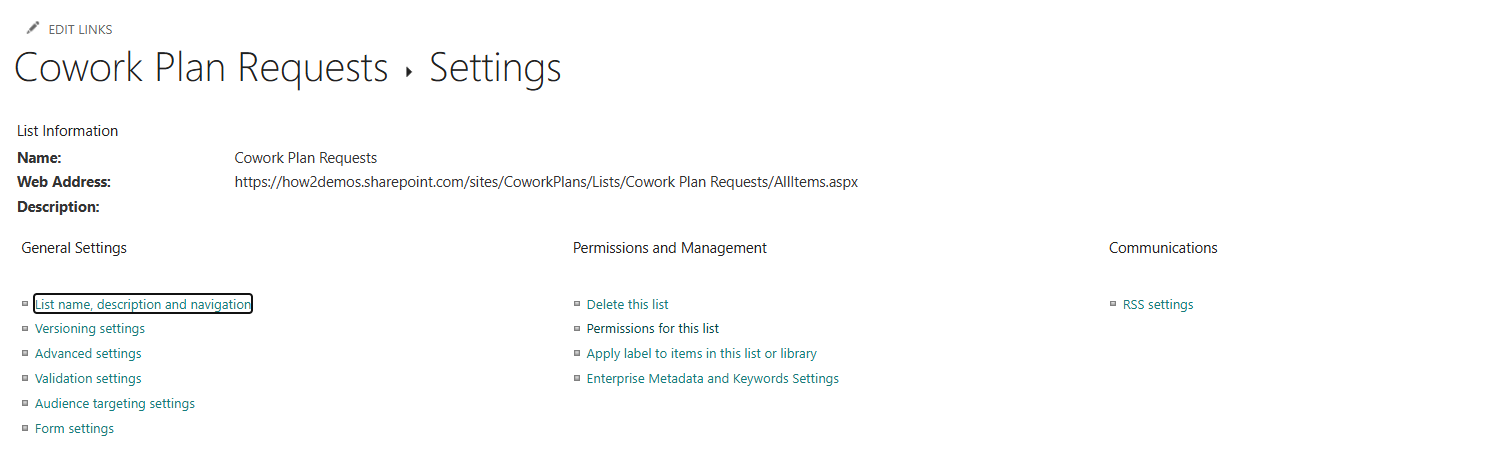
Open the Cowork Plan Requests list → gear icon → List settings → Permissions for this list.
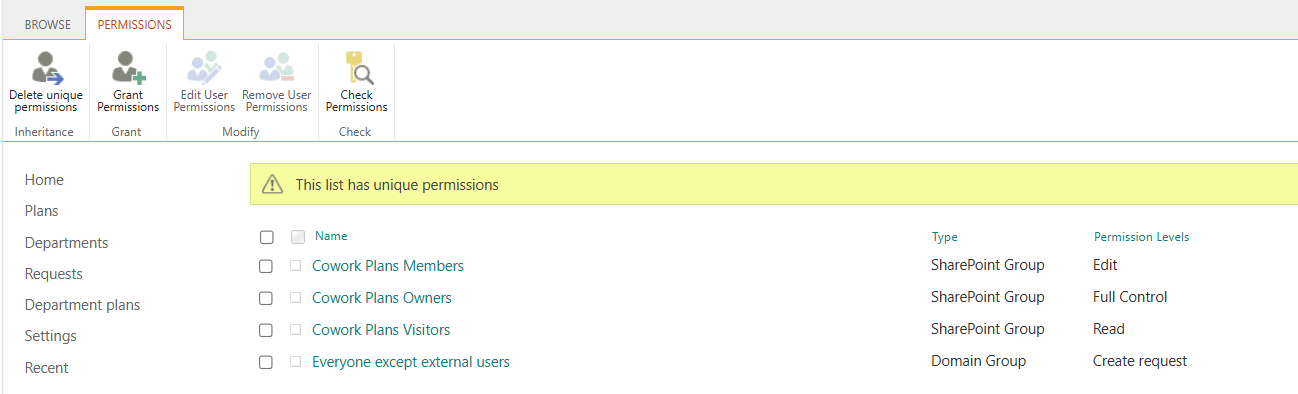
Select Stop Inheriting Permissions and confirm. The list now has its own permissions, independent of the site.
Select Grant Permissions.
Enter Everyone except external users, open Show options, and choose the Submit request level.
Clear the option to send an e-mail invitation, then select Share.
Confirm the app administrators still hold Edit or Full Control on the list.
Break inheritance on the requests list only - leave every other list inheriting from the site.Grant Everyone except external users the custom level on this list.
Permission changes can take a few minutes to propagate. If a pilot user hits an error when submitting, wait, then have them re-open the app before investigating further.
10 Post-deployment verification checklist
~15 minutes · run this end to end before announcing the app
Communication site exists and is not group/Teams connected.
All five lists exist with the exact names; Cowork Plans has 4 rows and App Settings has 6 rows.
Title is no longer mandatory on Department plans - or on Cowork Plan Requests.
Five security groups exist, membership type Assigned, deployment account is Owner on each.
Every Security Group ID in Cowork Plans matches a group in this tenant (no leftover source-tenant GUIDs).
Pause Group in App Settings holds the object ID of the Cowork - Paused group.
Admins M365 Email in App Settings holds the primary administrators’ addresses (sample addresses removed).
Departments and Department plans populated for at least one pilot department.
Five spending policies created (four plans + pause), each targeting the correct security group; the pause policy uses the minimum credit allowance.
Solution imported, all connections green, all flows On, app published and shared.
Everyone except external users is in the site Visitors group; app administrators are Members or Owners.
The Submit request permission level exists, with delete and View Application Pages cleared.
Cowork Plan Requests has unique permissions, granting Everyone except external users the Submit request level.
Smoke test: submit a plan request as a pilot user → the approval reaches the manager → approve → a new row lands in Cowork Plan Requests with the correct SecurityGroupID → the user appears in the matching Entra group within a few minutes → the spending policy applies to that user.
Rollback: if the smoke test fails, turn the flows Off, correct the configuration (usually a list name, an environment variable, or a mismatched group ID), turn the flows back On and re-run the test. No data is lost - all state lives in the SharePoint lists.
Follow the steps in order · further sections to be added.